DXF Export for SolidWorks
The whole assembly.
To DXF. In seconds.
Open a STEP file or an assembly. Every part is flattened, exported and saved to one folder, with a summary of quantities and dimensions, and bending sheets.
For SolidWorks on Windows. 14 days free, then €20 per month. Cancel anytime.
Four clicks.
That's it.
No more opening parts one by one. DXF Export goes through the model, groups identical parts and outputs one DXF per part.
A few seconds later, everything is ready for the laser.
What goes to the shop floor.
Real output from exporting an 18-part sign, untouched.
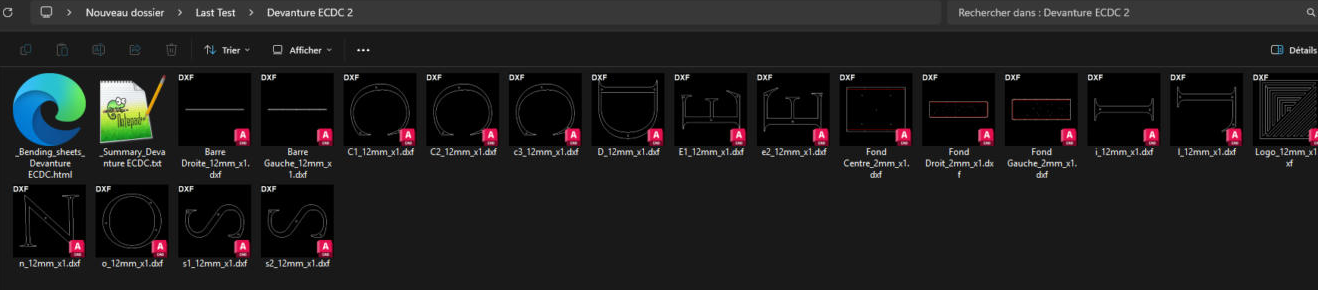
One DXF per part
Files you can read without opening them.
Part name, thickness and quantity in every file name. Identical parts are grouped.
Summary
Quantities and overall sizes. At a glance.
Sorted by material and thickness, with the total part count. Your laser cutter can quote right away.
| Part | Qty | Thk. | Overall (mm) | Type |
|---|---|---|---|---|
| Fond Droit | 1 | 2 | 2961.7 × 783.4 | Sheet metal (flat pattern) |
| Fond Gauche | 1 | 2 | 2169.7 × 783.4 | Sheet metal (flat pattern) |
| Fond Centre | 1 | 2 | 1032.0 × 783.4 | Sheet metal (flat pattern) |
| Barre Droite | 1 | 12 | 2805.2 × 27.0 | Flat part |
| Logo | 1 | 12 | 628.3 × 628.3 | Flat part |
| C1 | 1 | 12 | 357.8 × 314.1 | Flat part |
| Total | 18 |
Bending sheets
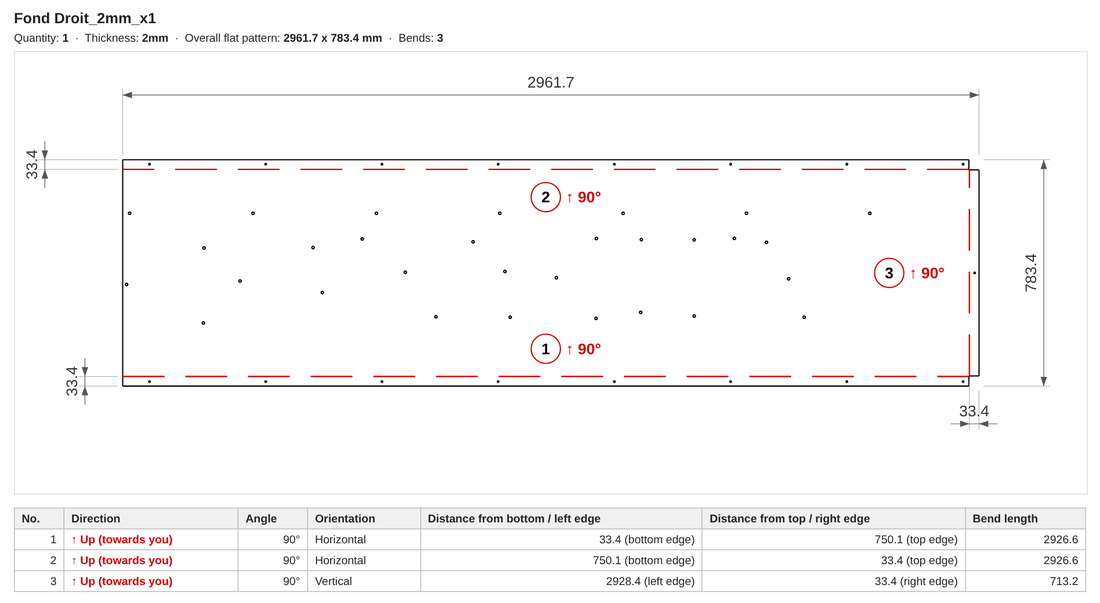
Every bend, dimensioned and oriented.
The flat pattern drawn as in the DXF, with each bend's number, direction, angle, distance from the edge and length. Flat patterns are flipped when needed so bends face up.
Settings
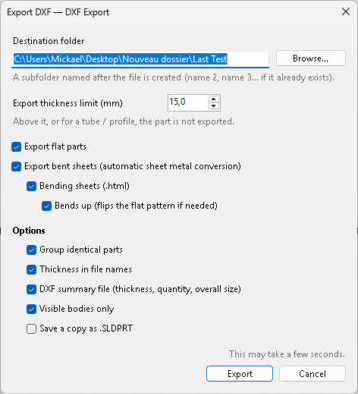
All the options on one screen.
Flat parts and bent sheet metal, automatic sheet-metal conversion, a thickness limit to skip tubes and profiles, visible bodies only.
Report
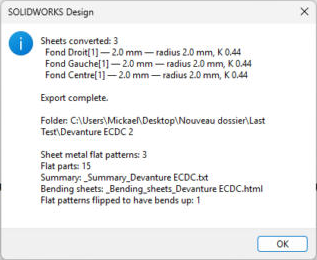
You know exactly what was exported.
At the end, a summary: number of flat patterns and flat parts, files created and parts to check.
Inside SolidWorks.
A DXF Export tab in the ribbon. No macro to run.
Nothing leaves your PC.
Everything is processed on your machine, in SolidWorks.
Nothing is overwritten.
Each export creates its own folder: name, name 2, name 3…
Before. After.
By hand, for every part
- Open the part
- Create the flat pattern
- Make a drawing of the flat pattern
- Save as DXF, clean up the layers
- Rename with thickness and quantity
× 12 parts.
With DXF Export
- Open the assembly
- DXF Export tab
- Export DXF
- Export
Once. For the whole assembly.
Built for sheet metal.
Laser cutting shops
Clean, well-named DXF files, ready to nest.
Metalworkers and fabricators
From assembly to cutting without leaving SolidWorks.
Design offices
A complete manufacturing package to send to your subcontractor.
Try it for 14 days.
For free.
Every feature in every plan. One license per computer.
Monthly
After a 14-day free trial.
- All features
- Updates included
- Cancel anytime
Yearly
That's €16.67 per month, after a 14-day free trial.
- All features
- Updates included
- One payment per year
Online, in a minute.
With the download link, by email.
Paste the key in the DXF Export tab.
Frequently asked questions.
How does the free trial work?
You get every feature for 14 days. Cancel before the end and you pay nothing. Otherwise, your chosen plan starts automatically.
Does it work with a STEP file?
Yes. Open the STEP file in SolidWorks, then run the export from the DXF Export tab, just like with a SolidWorks assembly.
Which SolidWorks versions are supported?
SolidWorks on Windows. The add-in is developed and tested on SolidWorks 2026.
Will the DXF files work in my cutting software?
Yes, they are standard DXF files, readable by common nesting and laser cutting software.
Does a new export overwrite the previous one?
No. Each export creates a subfolder named after the part. If it already exists, the next one is called "name 2", then "name 3", and so on.
Are tubes and profiles exported?
No. Above the thickness limit you set, or for a tube or profile, the part is skipped. Only sheet metal and flat parts go to DXF.
If I change computers, do I lose my license?
No. Email contact@mickad.xyz and we'll release the key from the old computer so you can activate it on the new one.
How do I cancel?
From the subscription management link you received by email. The add-in stays active until the end of the paid period.